Power Apps Community Plan has been rebranded as the Power Apps Developer Plan

If you have not heard yet, you can actually have a free development environment to build and test with Power Apps, Power Automate, and Microsoft Dataverse.

In the Microsoft Learn article, it explains that this plan enables you to:

  • Create apps and flows without writing code, with full-featured Power Apps and Power Automate development tools. Easily share and collaborate on these solutions with others.
  • Connect to any data source by using 400+ out of the box connectors or by creating your own custom connectors.
  • Use a fully managed, scalable data platform with Dataverse, including support for common business application actions. Use out-of-the-box common tables or build your own data schema.
  • Export the solutions you create in your developer environment, and publish them on Microsoft AppSource so your customers can test-drive them.

For more information, please check out Microsoft Learn. Enjoy learning!

Improved Custom Recurring Tasks in Dataverse

Hi there! I have been receiving a few emails regarding my previous post about Custom Recurring Tasks. I read my post and realized that there are missing pieces in there. I probably left it like that to invite discussions and questions. Well, after more than a year, here we are and we got a few inquiries on the solution.

I tested the recurring feature of appointments and use that concept to re-create my Recurring Tasks solution.

I used the same UI section but I kind of optimized the Power Automate. Instead of 2 cloud flows, I kept it to one and use SWITCH to separate the daily vs weekly reoccurrence.

Here is how it looks now:

And to save you time, you can explore the solution by downloading it here. Have fun!

Recurring Tasks in Dynamics 365 using Power Automate #lesscode

In Dynamics 365, Appointment Activity has recurrence feature. But what if business has a requirement to have the same functionality when using a Task Activity, like specifying a recurring pattern & dates?

Today I will share with you a simple approach on how you can create a custom recurrence feature in Task Activity using the power of Power Automate.

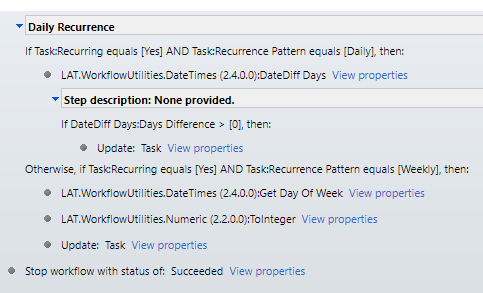
I used Custom Fields, a Workflow & 2 Power Automate Flows. I also used workflow extension from a Dynamics 365 Workflow Hero, Jason Lattimer.

I added a few more custom fields to hold daily & weekly count for doing a loop in Power Automate.

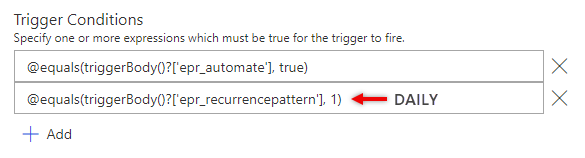
Then I created a Two Option field called “Automate” that I can use on my Trigger Condition.

Daily Recurring

At the end, I make sure I decrement the Count just how we do it when writing codes. Then for weekly recurrence, I used Date Time connector – “Add a Time” and set it to add 1 Week.

And there you have it, a simple & working recurring task feature for your Task Activities.

I hope this is helpful. Let me know if you want to see the whole solution. Feel free to message me and I will send it straight to your mailbox.

Stay safe, everyone.

How to Get Dynamics 365 Annotation Attachment using Power Automate?

Did you know that you can generate a Dynamics 365 Document Template through a workflow? By using the OOB SetWordTemplate action, you can automate the template generation in a real-time or background workflow.

The SetWordTemplate action automatically uploads it in the Notes entity.

Now, what if you need to get that actual Document from the Notes and attach it in an Email as PDF. This is where Power Automate comes in handy.

You need to set Trigger Conditions to ensure that you are only triggering this flow if the Note (annotation) has an attachment (isdocument) and for a specific object type. In my case, I only filter Notes that are created in the Contact entity. Check out this quick video.

Then, in order to get the actual content type of the Note Attachment and before converting it to PDF, I converted base64 to binary with the following function:

base64ToBinary(triggerOutputs()?[‘body/documentbody’])

After this, you can use the Office 365 connector to create the email and attached the document.

I hope you find this helpful. Goodluck and have fun!

Create a website or blog at WordPress.com

Up ↑