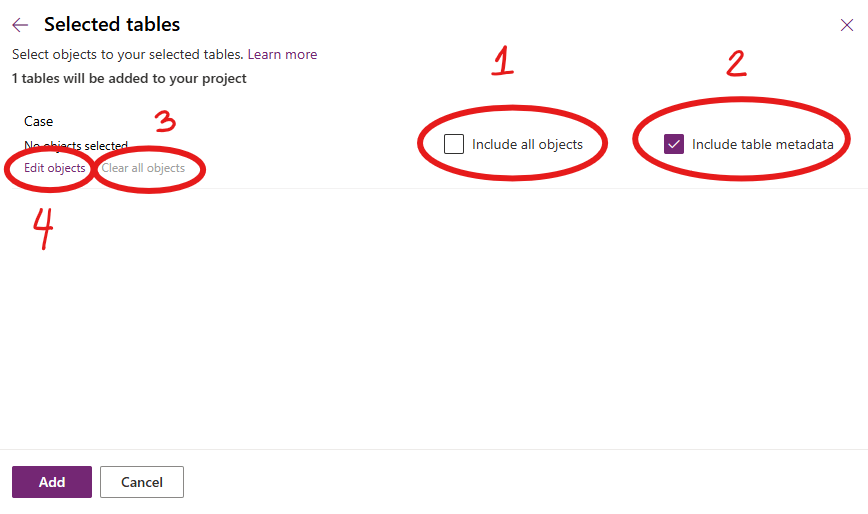
Are you aware that all of these features are available in Model-Driven Apps as column controls? A few years ago, we had to create custom email validation, auto-number, and rich text editors in our projects, but now they are readily available with a simple configuration. Maybe it’s time for a cleanup? #powerplatformcommunity #modeldrivenapps
How To: Microsoft Dataverse Security
Hello everyone! I hope everyone is having a great first day of the year!
I am very excited to announce that I have finally created a Youtube channel called “Coffee & Technology”. Yes, because these are two of my favorite things. 😀
This channel is dedicated to Dynamics 365 and the Power Platform community. I created this channel to share with you how you can leverage out of the box features of Dynamics 365 and share with you some tips and tricks I learned in the past few years.
In the first episode, I will show you how Dataverse Security can adapt to many business scenarios.
I hope you find this helpful and if it did, please don’t forget to like this video, share and subscribe.
Cheers to new hope, new chance! May we have a wonderful 2022!
PS: If you have any business scenarios you need help on and would like me to do a video of, please feel free to reach out. 🙂
Improved Custom Recurring Tasks in Dataverse
Hi there! I have been receiving a few emails regarding my previous post about Custom Recurring Tasks. I read my post and realized that there are missing pieces in there. I probably left it like that to invite discussions and questions. Well, after more than a year, here we are and we got a few inquiries on the solution.
I tested the recurring feature of appointments and use that concept to re-create my Recurring Tasks solution.
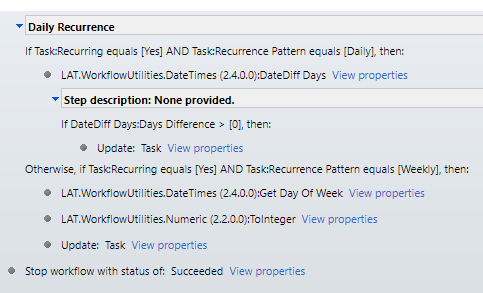
I used the same UI section but I kind of optimized the Power Automate. Instead of 2 cloud flows, I kept it to one and use SWITCH to separate the daily vs weekly reoccurrence.
Here is how it looks now:

And to save you time, you can explore the solution by downloading it here. Have fun!
Recurring Tasks in Dynamics 365 using Power Automate #lesscode
In Dynamics 365, Appointment Activity has recurrence feature. But what if business has a requirement to have the same functionality when using a Task Activity, like specifying a recurring pattern & dates?
Today I will share with you a simple approach on how you can create a custom recurrence feature in Task Activity using the power of Power Automate.
I used Custom Fields, a Workflow & 2 Power Automate Flows. I also used workflow extension from a Dynamics 365 Workflow Hero, Jason Lattimer.


I added a few more custom fields to hold daily & weekly count for doing a loop in Power Automate.

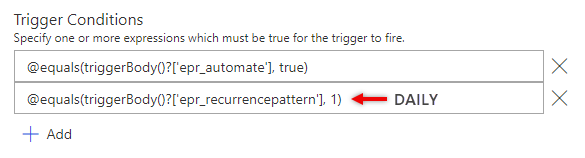
Then I created a Two Option field called “Automate” that I can use on my Trigger Condition.


At the end, I make sure I decrement the Count just how we do it when writing codes. Then for weekly recurrence, I used Date Time connector – “Add a Time” and set it to add 1 Week.
And there you have it, a simple & working recurring task feature for your Task Activities.
I hope this is helpful. Let me know if you want to see the whole solution. Feel free to message me and I will send it straight to your mailbox.
Stay safe, everyone.
How to Open a Quick Create Phone Call through a Custom Ribbon Button?
Here is another tutorial for you.
The requirement is to add a ribbon button so a Customer Service Agent can easily create a Phone Call with minimal clicks in the Unified Client Interface of Dynamics 365. We will also auto-populate the values in the Phone Call form.
Step 1: Create a web resource js file where you will write the custom script to open the quick create phone call form.
Step 2: Add a custom ribbon button in the Contact form using the Ribbon Workbench.
Tip: Make sure that the solution you will open in the Ribbon Workbench only includes the entity you need to modify without all the assets. This will make publishing quicker.
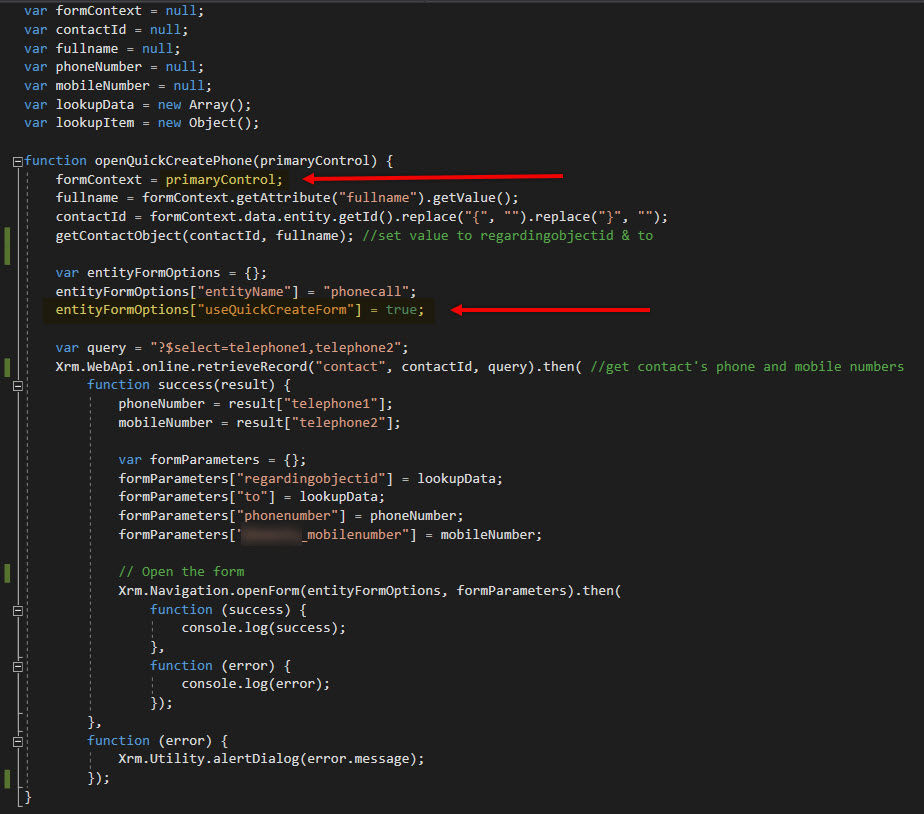
Step 3: Add a Phone Call command in the Ribbon Workbench with CRM Parameter of PrimaryControl. This is the executionContext where you can easily get the attributes of the form.

Step 4: Write these codes:

Your result:

Features of Queues (When to use and recommend Queues vs Activities?)
Activities is a list of all activity types such as Email, Phone Call, Task, Appointment, Fax, Letter, etc.
Queues is a place where you list both activities and cases in the same view.
Depending on business needs, you can recommend either one to manage all action items recorded in CRM. Some business users, they prefer looking into separate views, however, some businesses have multiple teams and it will be beneficial for them to use queues instead.
Here are the most important information you need to understand and know when considering Queues vs Activities.
QUEUES FEATURES
- It is required to setup a Team to use Queues. This way, you can easily manage the members’ action items and their security role.
- The activities and cases inside a queue is called a queue item.
- Users can pick a queue item as needed.
- Picking a queue item updates the Worked By field/column. This also updates the record’s owner field.
- Users can route a queue item to another Queue or User.
- Users cannot route a queue item to a user who is not a member of the Queue that owns the queue item.
- A queue item can be delegated to another user who is not member of team by assigning the specific activity or case (just like any other records in CRM).
- Releasing a picked queue item will automatically be routed back to the Queue even if you have assigned the activity or case to anotehr user. (Worked By will be empty / Owner == Team)
- When displaying an Activity Status in queue, it will be a separate column per activity type unless you add a custom script. This applies with other fields like Due Date, Priority and other important fields. Thus, heading to a separate view for Activities and Cases are helpful.

Activities will stay even if the business chose to use Queues. There are certain users that does not work on Cases which means, Activity Views are good enough for them to manage their action items.
I hope this is helpful. Cheers!
Work Efficiently with XrmToolbox
I personally love learning and has always been passionate on sharing my knowledge especially if it’s about improving productivity.
In the past years, I have the ultimate go-to tool when it comes to tasks that require repetitive configuration. This type of job can be “easy,” but it can be very frustrating and very time-consuming.
This is XrmToolbox. It’s a FREE tool that uses Common Data Service for Apps as its foundational data service built to make administration, customization, or configuration tasks more manageable and less time-consuming. There are more than 100 tools available in the Tool Library, and here are some of the tools you can find:
User Security Manager – Use this tool to manage multiple users with multiple Business Units and Teams.

User Settings Utility – This comes in handy when you get a requirement to set default pane, tab, dashboard, etc. to multiple users or roles.

Workflow Buddy – Working with a vast Dynamics 365 project with several workflows can be very challenging when it’s time to troubleshoot. Although the Dynamics 365 Advanced Find can help, this tool makes it much easier to find a specific workflow.

Option Set Editor – Edit all your Option Set in one window. This editor is a life server when dealing with several local option sets in your environment.

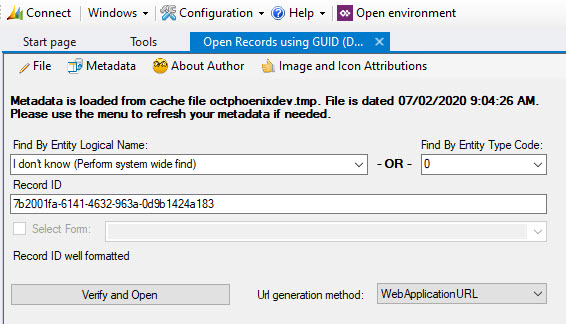
Open Records using GUID – When it’s time to troubleshoot and look for a certain GUID, instead of exporting records and finding it manually, this would be the best tool available.

As I have mentioned, there are more than 100 useful tools available in XrmToolBox. Few of the popular ones are Ribbon Workbench, FetchXML Builder, Entity Relation Diagram Creator, Solution Transfer Tool and a lot more. Whether you are administering Dynamics 365 or managing solutions, troubleshooting or customizing it, this tool is something you must pin in your taskbar.
I hope you find this helpful. Enjoy!
Recover recently deleted Dynamics 365 environment
Did you know that you can still recover deleted environment within 7 days of deletion by using Power Apps cdmlet Recover-AdminPowerAppEnvironment?
Tweet
Learn more about the Powershell cmdlets here. It is in preview mode but users with a valid Power Apps license can perform the operations in these cmdlets. Note that you can only perform these with the resources you have access to. More information here.
Note: Environments that can be restored are environments deleted by an administrator and not those deleted by the system due to license expiration and other scenarios.
Let me know how it goes on your end. Enjoy!
Get Started with Dynamics 365 Field Service with Demo Data
Looking to kick off Dynamics 365 Field Service trial environment with demo data? Well, you’re in the right place.
Make sure you have a valid email address and phone number. It does not have to be a work email. You can use an outlook account like what I did in this demo. Then, go to Dynamics Trial, select Field Service and click on Sign up here.


Once it’s up, you can start preparing the demo data installation.
There are a bunch of things you need to pre-configure before you can install the Fabrikam Manufacturing Demo Data.
- Download the demo data and unpack. For US consumers, you basically just need to follow the steps on this link. For non-US consumers, you may have to encounter some other issues like date format, etc.

2. Create and configure users in Office 365. Make sure you assign Dynamics 365 license for each of them so their names will appear in Dynamics 365 Users list (Settings > Security > Users). Keep notes of the username you set for each of them as these are important for the configuration later on.

3. Once it appears in Dynamics 365 users list, set System Administrator role to each of them.
4. Go to the extracted Demo Data file (PackageDeployer_FPSDemoData_v3007) you just downloaded and open PkgFolder and then find and open ImportUserMapFile.xml. Now, paste the email address you created for each user in Office 365. Also, set the DefaultUserToMapTo= field to the email address of the Spencer Low user.

5. In the same folder (PkgFolder), find and open DemoDataPreImportConfig.xml and find the <userstocreateandconfigure> tag. Update the <login> tag with the username (case-sensitive) you set for each user from step 2.
6. Setup a work hour template for Spencer Low. Navigate to Settings > Security > Users, find/open “Spencer Low” user.
While in the user form, navigate on the top menu and select Work Hours.

Click on the calendar and select More Actions > Edit. Select Entire recurring weekly schedule from start to end option and ensure the Work hours are set to 8 AM – 5 PM (9 Hours), Monday to Friday and with the Timezone set to Pacific Time (US & Canada). This is needed to ensure that the Project and Schedule board show as expected.
7. Before running the Package Deployer, check the following in Advanced Find to avoid encountering issues during the installation.
- Confirm that there is no more than one active Organizational Unit record, and then renaming it to Fabrikam US.
- Confirm that there is no more than one active Work Template record.
- Confirm that there is no more than one active Project Parameter record, and then renaming that entry to Parameters
Common Issues & Fixes:
- The pre-import process failed: Organisation should have no more than one active ‘msdyn_organisationalunit’ (fix: step 7)
- The pre-import process failed: ID for the user with login ‘davids’ not found (fix: step 5)
- Renaming Default Work Order Template failed with error: ID for User with login ‘davids’ not found (fix: step 6)
Now, you are ready to run PackageDeployer.exe.
Let me know how it goes in the comments down below.