Improved Custom Recurring Tasks in Dataverse

Hi there! I have been receiving a few emails regarding my previous post about Custom Recurring Tasks. I read my post and realized that there are missing pieces in there. I probably left it like that to invite discussions and questions. Well, after more than a year, here we are and we got a few inquiries on the solution.

I tested the recurring feature of appointments and use that concept to re-create my Recurring Tasks solution.

I used the same UI section but I kind of optimized the Power Automate. Instead of 2 cloud flows, I kept it to one and use SWITCH to separate the daily vs weekly reoccurrence.

Here is how it looks now:

And to save you time, you can explore the solution by downloading it here. Have fun!
Recurring Tasks in Dynamics 365 using Power Automate #lesscode

In Dynamics 365, Appointment Activity has recurrence feature. But what if business has a requirement to have the same functionality when using a Task Activity, like specifying a recurring pattern & dates?

Today I will share with you a simple approach on how you can create a custom recurrence feature in Task Activity using the power of Power Automate.

I used Custom Fields, a Workflow & 2 Power Automate Flows. I also used workflow extension from a Dynamics 365 Workflow Hero, Jason Lattimer.

I added a few more custom fields to hold daily & weekly count for doing a loop in Power Automate.

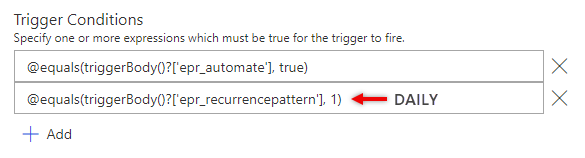
Then I created a Two Option field called “Automate” that I can use on my Trigger Condition.

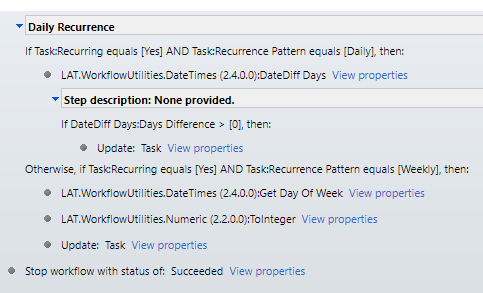
Daily Recurring

At the end, I make sure I decrement the Count just how we do it when writing codes. Then for weekly recurrence, I used Date Time connector – “Add a Time” and set it to add 1 Week.

And there you have it, a simple & working recurring task feature for your Task Activities.

I hope this is helpful. Let me know if you want to see the whole solution. Feel free to message me and I will send it straight to your mailbox.

Stay safe, everyone.

Features of Queues (When to use and recommend Queues vs Activities?)

Activities is a list of all activity types such as Email, Phone Call, Task, Appointment, Fax, Letter, etc.

Queues is a place where you list both activities and cases in the same view.

Depending on business needs, you can recommend either one to manage all action items recorded in CRM. Some business users, they prefer looking into separate views, however, some businesses have multiple teams and it will be beneficial for them to use queues instead.

Here are the most important information you need to understand and know when considering Queues vs Activities.

QUEUES FEATURES

  • It is required to setup a Team to use Queues. This way, you can easily manage the members’ action items and their security role.
  • The activities and cases inside a queue is called a queue item.
  • Users can pick a queue item as needed.
  • Picking a queue item updates the Worked By field/column. This also updates the record’s owner field.
  • Users can route a queue item to another Queue or User.
  • Users cannot route a queue item to a user who is not a member of the Queue that owns the queue item.
  • A queue item can be delegated to another user who is not member of team by assigning the specific activity or case (just like any other records in CRM).
  • Releasing a picked queue item will automatically be routed back to the Queue even if you have assigned the activity or case to anotehr user. (Worked By will be empty / Owner == Team)
  • When displaying an Activity Status in queue, it will be a separate column per activity type unless you add a custom script. This applies with other fields like Due Date, Priority and other important fields. Thus, heading to a separate view for Activities and Cases are helpful.

Activities will stay even if the business chose to use Queues. There are certain users that does not work on Cases which means, Activity Views are good enough for them to manage their action items.

I hope this is helpful. Cheers!

Create a website or blog at WordPress.com

Up ↑