
Recurring Tasks in Dynamics 365 using Power Automate #lesscode

In Dynamics 365, Appointment Activity has recurrence feature. But what if business has a requirement to have the same functionality when using a Task Activity, like specifying a recurring pattern & dates?

Today I will share with you a simple approach on how you can create a custom recurrence feature in Task Activity using the power of Power Automate.

I used Custom Fields, a Workflow & 2 Power Automate Flows. I also used workflow extension from a Dynamics 365 Workflow Hero, Jason Lattimer.

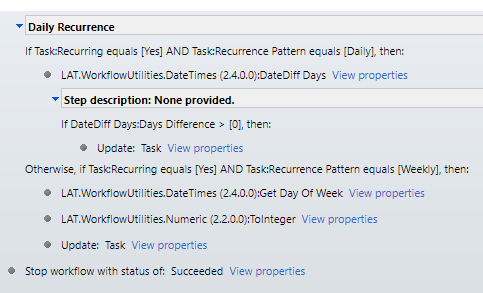
I added a few more custom fields to hold daily & weekly count for doing a loop in Power Automate.

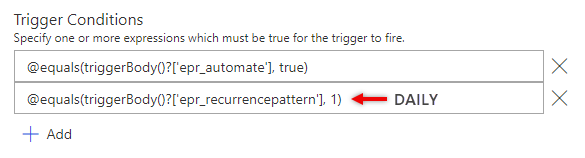
Then I created a Two Option field called “Automate” that I can use on my Trigger Condition.
Daily Recurring

At the end, I make sure I decrement the Count just how we do it when writing codes. Then for weekly recurrence, I used Date Time connector – “Add a Time” and set it to add 1 Week.

And there you have it, a simple & working recurring task feature for your Task Activities.

I hope this is helpful. Let me know if you want to see the whole solution. Feel free to message me and I will send it straight to your mailbox.

Stay safe, everyone.

How to Get Dynamics 365 Annotation Attachment using Power Automate?

Did you know that you can generate a Dynamics 365 Document Template through a workflow? By using the OOB SetWordTemplate action, you can automate the template generation in a real-time or background workflow.

The SetWordTemplate action automatically uploads it in the Notes entity.

Now, what if you need to get that actual Document from the Notes and attach it in an Email as PDF. This is where Power Automate comes in handy.

You need to set Trigger Conditions to ensure that you are only triggering this flow if the Note (annotation) has an attachment (isdocument) and for a specific object type. In my case, I only filter Notes that are created in the Contact entity. Check out this quick video.

Then, in order to get the actual content type of the Note Attachment and before converting it to PDF, I converted base64 to binary with the following function:

base64ToBinary(triggerOutputs()?[‘body/documentbody’])

After this, you can use the Office 365 connector to create the email and attached the document.

I hope you find this helpful. Goodluck and have fun!

Create a website or blog at WordPress.com

Up ↑